

Dome Light#
A DomeLight emits inwards from an environment surrounding the scene. Set a
high-dynamic-range texture to provide image-based lighting, or leave the texture
unset to use the common color and intensity controls.
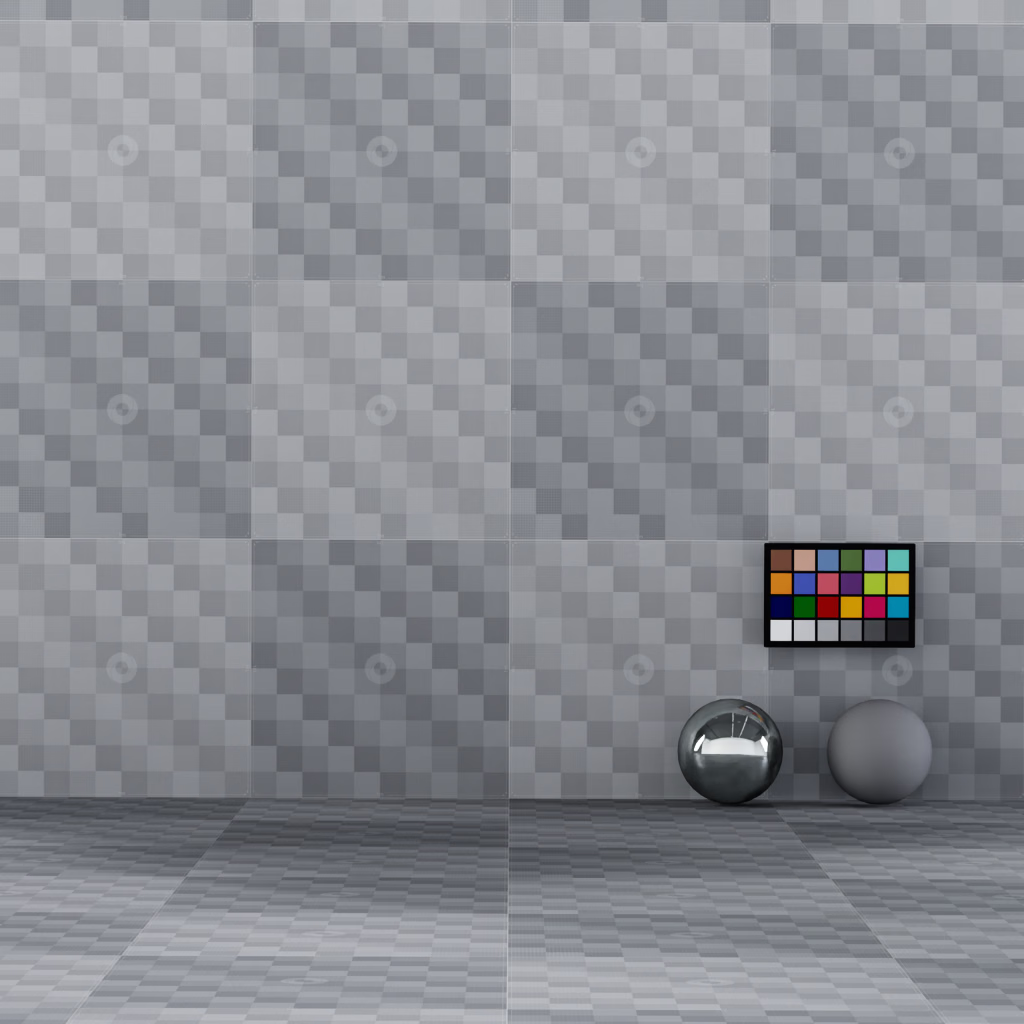
A textured dome light supplies both environment illumination and a background.#
USD declaration |
Description |
|---|---|
|
Color texture, normally a high-dynamic-range environment image. |
|
Texture parameterization: |
The following examples create a dome light using a latitude-longitude environment texture:
def DomeLight "Environment"
{
    asset inputs:texture:file = @../../data/studio.exr@
    token inputs:texture:format = "latlong"
}
light = UsdLux.DomeLight.Define(stage, "/World/Environment")
light.GetTextureFileAttr().Set(Sdf.AssetPath("../../data/studio.exr"))
light.GetTextureFormatAttr().Set(UsdLux.Tokens.latlong)
Multiple Dome Lights#
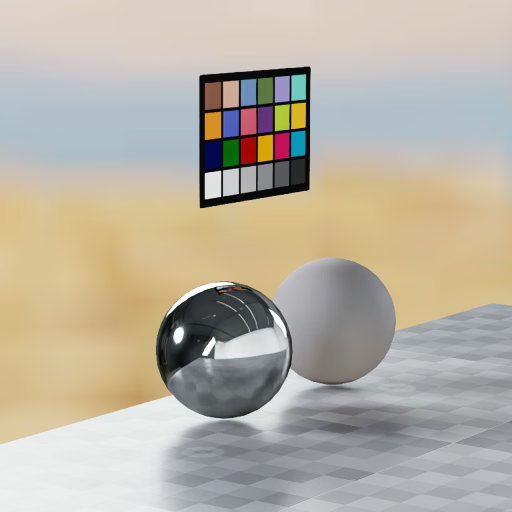
The outdoor dome supplies only the camera background. A second studio dome, hidden from direct camera rays, illuminates the objects and appears in the chrome sphere’s reflection.#
ovrtx supports multiple dome lights in the same scene by default. Create a
separate DomeLight prim for each environment you want to combine. Each dome
can have its own texture, rotation, color, intensity, and exposure. This lets
you combine an environment with a separate studio-lighting texture or a
constant-color fill.
The domes’ contributions add together; they are not automatically averaged or normalized. Adding a second dome can therefore make the scene brighter. Adjust each dome’s intensity and exposure to balance its contribution. For example, two identical domes at half the original intensity produce the same combined emission as one dome at the original intensity.
Choosing Which Domes Appear in the Background#
A dome can illuminate the scene without appearing in the camera’s background.
For example, you can show an outdoor environment in the background while using
a second, hidden studio dome to light the subject. The DomeLight’s
visibleInPrimaryRay attribute controls whether the light is visible to the camera or not.
When using scene partitions, the domes available to a camera depend on its partition. Multiple domes do not bypass scene-partition isolation.
Using Separate Domes for the Background and Lighting#
To show one environment to the camera while lighting the scene with a different
environment, create two dome lights and configure them as follows. Ensure
omni:rtx:lights:visibilityOverride = "perLight" (the default) on the RenderProduct.
Attribute |
Background dome |
Lighting dome |
|---|---|---|
|
Image the camera should see |
Environment used for illumination |
|
|
|
|
|
|
|
|
|
Setting both response multipliers to zero on the background dome removes its diffuse and specular contributions while preserving its appearance to direct camera rays. Hiding the lighting dome from primary rays removes it from the background while retaining its illumination and reflections.
Keep both domes’ intensities nonzero. Adjust the background dome’s intensity or exposure to control the visible background brightness, and adjust the lighting dome’s intensity or exposure to control illumination. Setting the background dome’s intensity to zero would also make its camera-visible image black.
Finite Dome Modes#
Finite dome modes project the environment onto virtual ground, sphere, or box geometry. They are useful when an infinite environment gives incorrect parallax, scale, or horizon placement. The projection geometry affects dome lighting and background rays; it does not create renderable USD geometry.
OmniFiniteDomeLightAPI is auto-applied to every DomeLight and provides
six modes:
Mode |
Behavior |
|---|---|
|
Standard infinite environment-map lighting. This is the default. |
|
Infinite environment with the lower portion projected onto a ground plane. |
|
Projects the environment onto a finite sphere. Rays that miss the sphere return black. |
|
Projects the environment onto a finite box. Rays that miss the box return black. |
|
Finite sphere plus a projected ground plane that replaces the lower portion. |
|
Finite box plus a projected ground plane that replaces the lower portion. |
The following comparison uses the same environment, camera, and subject for all six modes:
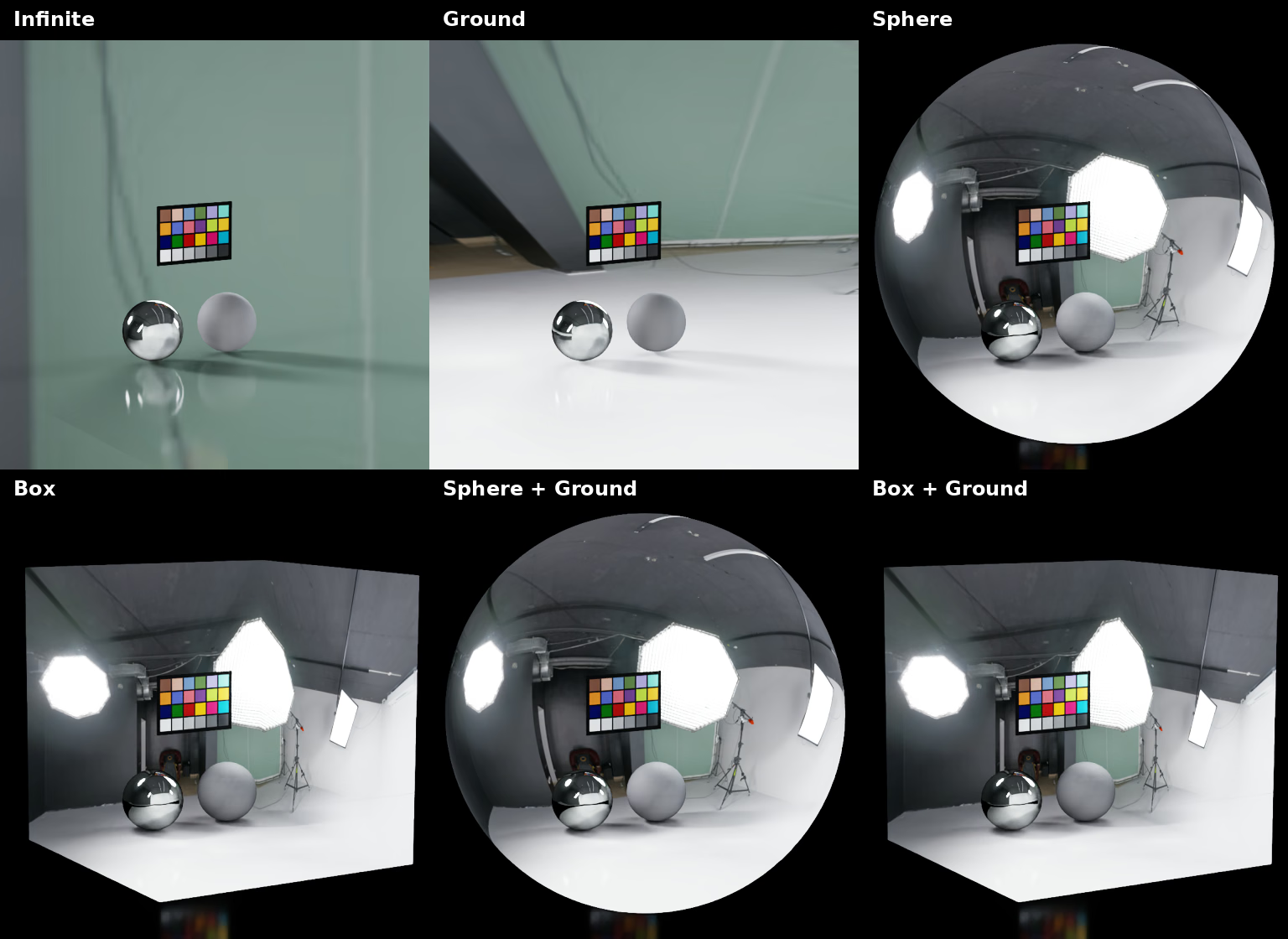
Finite modes project the same environment onto different virtual boundaries.#
Finite Dome Attributes#
Author these attributes on the DomeLight prim:
USD declaration |
Description |
|---|---|
|
Selects the projection mode listed above. |
|
Base radius for |
|
Full width, height, and depth for |
|
Sets the projection’s vanishing-point distance along its up axis. ovrtx uses the absolute value. |
|
Optionally targets an Xformable prim that positions, rotates, and scales the finite boundary independently. The identity transform is used when no target is authored. |
The DomeLight transform controls environment texture orientation and the
ground origin. The optional coordSys:domeGeometry:binding target controls
the finite sphere or box center, orientation, and scale. This separation lets
you orient the image independently from its projection boundary.
Radius#
The following comparison changes omni:rtx:domeLight:radius on a
sphereWithGround dome:
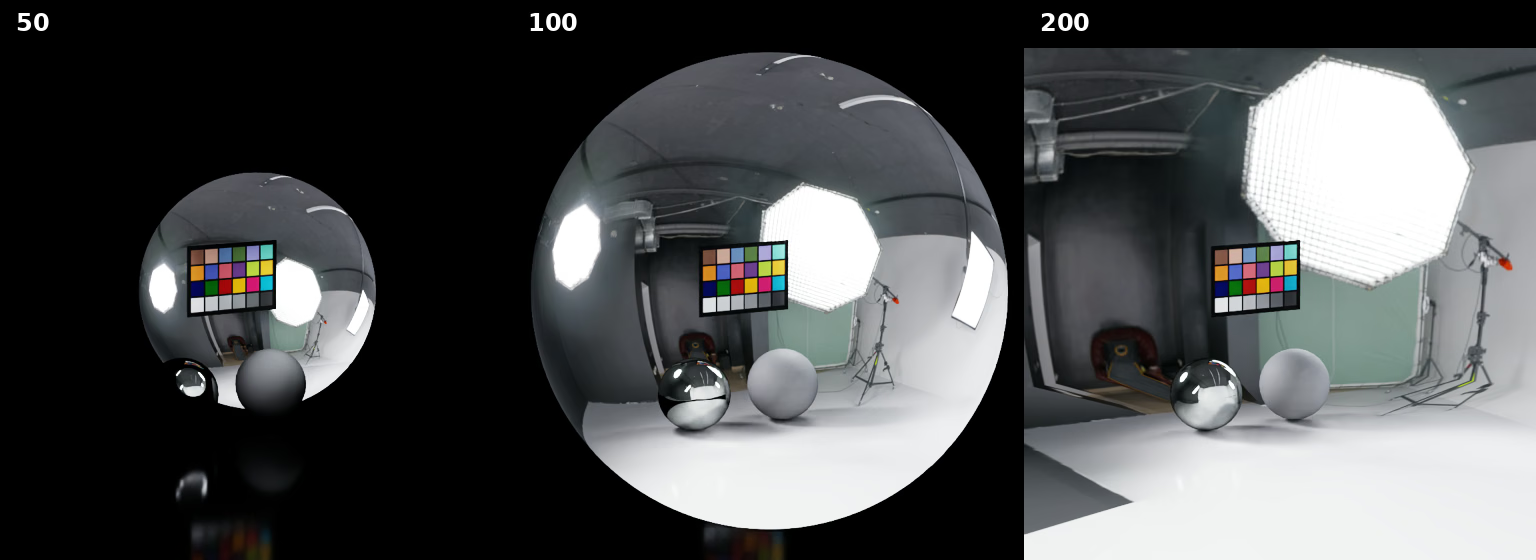
Radius changes the extent and curvature of the spherical projection boundary.#
Size#
The following comparison changes omni:rtx:domeLight:size on a
boxWithGround dome:
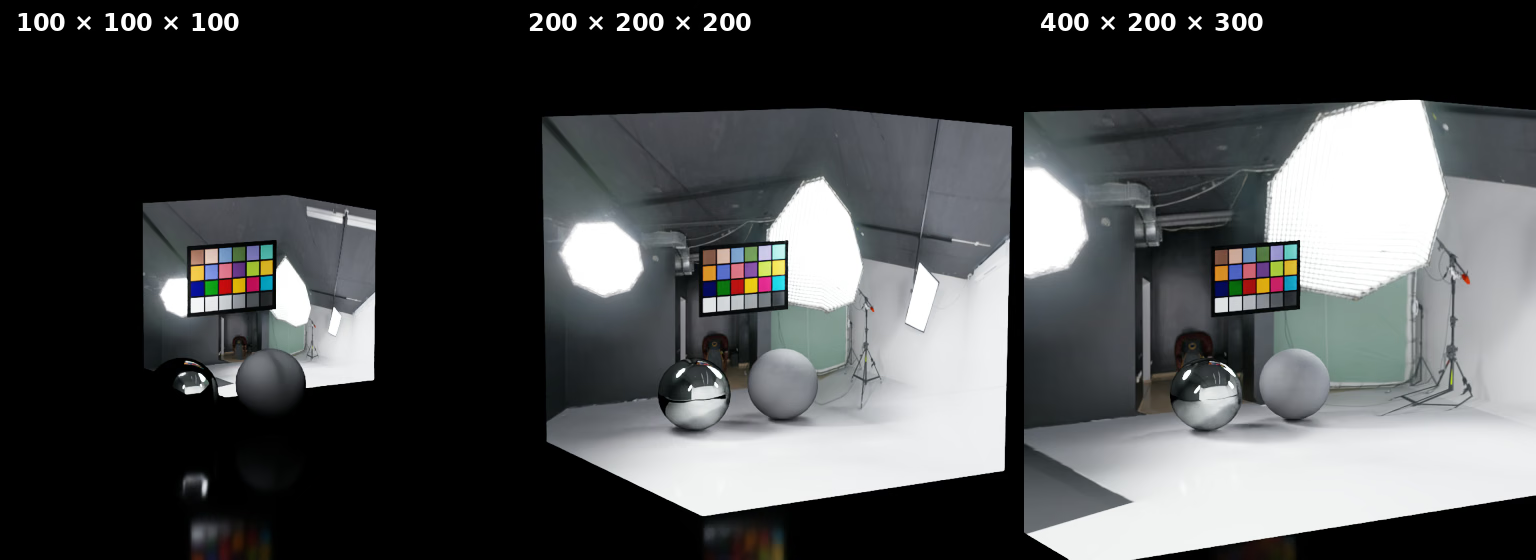
Size controls the width, height, and depth of the box projection boundary.#
Ground Texture Scale#
The following comparison changes
omni:rtx:domeLight:groundTextureScale on a boxWithGround dome:
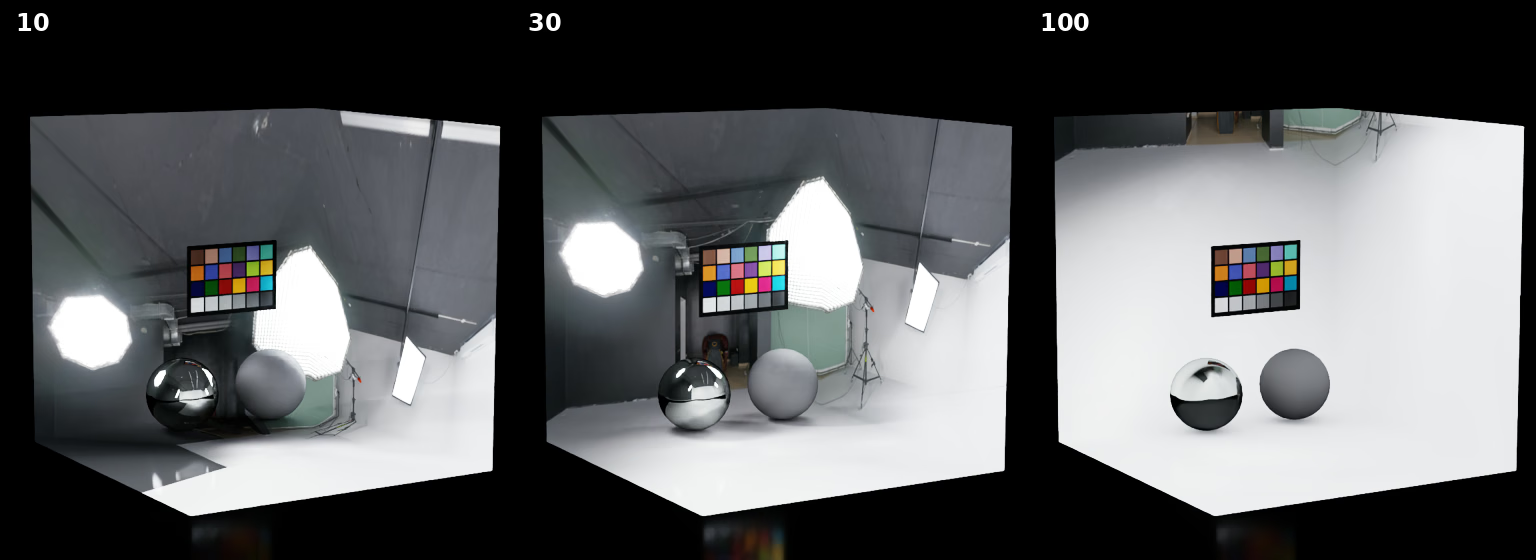
Ground texture scale changes the vanishing-point distance used to project the environment onto the ground.#